



 Swift To-Do List 11
 Swift Mind Freedom
 Meta Productivity
 Daily To-Do List
We’ve just released new huge update of Swift To-Do List, version 7.60, which will make your life much easier. You can Download the latest version now.
We’ve been upgrading Swift To-Do List non-stop for over 7 years now, and we are just getting started! This upgrade is free for all existing customers, but some of the features added in this upgrade are available only in the Professional or Ultimate editions.
This new exciting update adds these features (more details, including images, are below):
- New calendar panel below the tree (Professional and Ultimate only)
- New interactive info panel (Professional and Ultimate only)
- New global hotkey for creating tasks from selected text in any application
- HTML emails support when emailing tasks (Professional and Ultimate only)
- File and folder attachments can be now renamed
- New smarter task-view header
- Improved compatibility for systems with larger text size (non-standard DPI)
- Attachments are now included in CSV export
- Other misc improvements and fixes
New calendar panel
This is a truly exciting new feature. Picture is worth 1000 words, so check it out –
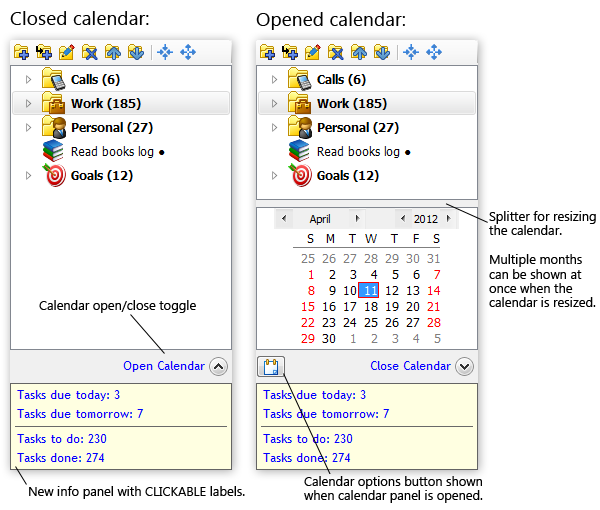
If you learn to use the calendar panel, you will be able to quickly get a complete overview of important deadlines, meetings or appointments. This will help you to stay on top of things, eliminate stress, and give you the much needed room to focus. Nothing urgent will suddenly surprise you.
As you can see above, the calendar panel is located below the to-do list tree, and is collapsed by default. With just one click, you can open it and see only tasks due today – or on any other date – or on multiple dates.
The calendar supports multi-selection, so you can easily select whole week or month using mouse.
Several calendar modes are supported. The calendar supports Due Date, Start Date, Completion Date, Changed Date and Creation Date of your tasks. So, for example, in Due Date mode (default), it is showing tasks due on the selected day. You can change the Calendar Mode by clicking the Calendar Options button, or by right-clicking the Open/Close Calendar label.
If you are adding a new task, and a single date is selected in the calendar panel, the task will have that date set by default.
The calendar panel can show multiple months at once. If you resize the tree so it is wider, the calendar panel will display two month beside each other. You can also increase the height of the calendar using the splitter above calendar.
When you close (collapse) the calendar, your original view mode will be restored.
New info panel
If you look at the calendar panel image above, you will also notice that the info panel now has clickable blue labels. This means that you can click the “Tasks due today” label and immediately see all tasks due today. Or, you can click the “Tasks to-do total” label, and immediately see all undone tasks – and so on. All 4 labels are clickable.
New task-view header
The task-view header is the text label shown above the task-view. It is always telling you what you are looking at.
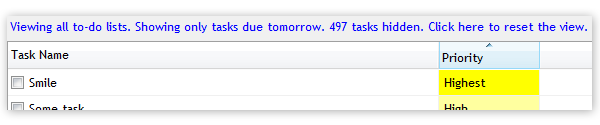
In the new version, it will now also tell you if the view is filtered using a calendar.
But most importantly, it now also allows you to quickly reset the view by clicking the label. With just one click, you can restore the default view – it will reset the view mode, Filter, and close the calendar.
Here is a screenshot of the new task-view header. Notice the blue clickable text:
Add tasks from any application
You can add tasks from nearly any application using a new global hotkey (Ctrl+Shift+A by default).
This allows you to create tasks on-the-fly from emails, instant messages, documents, and other sources. It saves you time.
This is how to use this new feature:
- Select any text in any application.
- Press the hotkey Ctrl+Shift+A (you can change it in Options.)
- The Add Task window will be opened and the selected text inserted into the Task Name. Fill in any other details (if required) and click OK – or just press the Enter key.
If you are curious how it works “under the hood”, this is what happens when you press the global hotkey: Swift To-Do List copies the selected text into clipboard, then opens the Add Task dialog, and pastes the text.
And if you’ve already installed version 7.60, you can try this right now. Just select this line of text, press Ctrl+Shift+A, and see what happens!
HTML emails when emailing tasks
The email task feature allows you to email any task to the assigned person, to yourself, or anyone else. In this new version, you can check “HTML Format” in the Email Task window to send the email message in HTML. This means that the notes formatting will be preserved in the email, including images.
Attachments can be renamed
Swift To-Do List supports email, link, file and folder attachments. It was not possible to rename the file and folder attachments, but from 7.60 on, you can rename them as well. You can just simply right-click any attachment and click Edit, or select the attachment and click it’s name to edit it in-place.
More features coming!
We have a lot of other things planned for the future. These things include finished and polished online sync and collaboration features (currently available in Beta), companion mobile web apps and mobile apps (currently available in Beta), sub-tasks, custom fields, team functionality, scheduling calendar (with intra-day scheduling), tables in notes, and much more. Stay tuned.
If there is any feature that you would want to see in Swift To-Do List, post in the comments below. We are always counting “votes” for new features.
Thanks for the great software!!! The 7.6 changes are very nice!
I do have 1 feature request. I would like to be able to apply multiple filters at once. I do realize I can create filters that have more than one condition, but this is not the best way to have filter options like…
Assigned to: Me, Due: Today
Assigned to: Me, Due: Tomorrow
Assigned to: Me, Undone Only
Assigned to: Me, Priority: High
Assigned to: Me, Priority: Low
Assigned to: Me, Type: Major Task
Assigned to: You, Due: Today
Assigned to: You, Due: Tomorrow
Assigned to: You, Undone Only
Assigned to: You, Priority: High
Assigned to: You, Priority: Low
Assigned to: You, Type: Major Task
With the above filters, if I could select two at a time, it would bring me from 12 filters to 7. It would further reduce the amount of different filters, if you had to filter them by three or four properties. Although, the way it works now should not be abandoned, since if I wanted to quickly switch from one filter to another, I’d have to first disable the current filter. It would be nice to be able to apply a second or third filter at the same time and there even appears to be room on the Main Toolbar for a second or third filter dropdown. These could have an option to hide/show for people who didn’t want to use them. You would keep the same method of filtering with one box, but have the option for a second or third.
Hi Peter,
Yes, we could implement support for multiple filters at the same time. Keep in mind that even the new Calendar Panel acts as a second filter, so you can stop using all your all Due-filters, because you can easily combine them with the Calendar panel. The calendar works as a second filter.
Also, you can regularly prune the Done tasks into the Archive using the Clean Tasks feature.
Applying multiple filters at the same time is technically possible, so it’s mainly a question of good design that wouldn’t confuse less demanding customers and wouldn’t make the program more complex. I will think about it.
An addition to what I said above, this would also make it where you could have kind of a global filter you always want to use.
Filter: Undone Only
Let’s say I always want to filter by Undone Only, but sometimes, I want to filter by another property, like Assigned to Me, Due Today, High Priority, etc.
I’d have to setup all of my filters to include Undone Only along with the other property. Then when I need to look back at a task that is done, I have to set it to No Filtering or have another copy of all of my filters.
The Filter shortcut keys could work only for Filter 1, or new shortcuts could be added if possible.
If I could have multiple filters at once, I could set the Undone Only on Filter 2, then change through my commonly changed filters on Filter 1. Then when I need to look at Done Tickets, change filter 2, then filter the tickets further using Filter 1.
I will keep this usage case in mind when designing the more powerful filters feature.
Another Idea: Automatic Time Tracking
If there was a way to Automatically start/End/Pause Time tracking for a task based on a certain action/certain program run/certain file opened, that would be pretty cool.
Like, I’m working on project A which is done in Powerpoint, and this project is the only reason I’d be using powerpoint, so I set it so that if Powerpoint is running, time is being tracked for the Task: Work on Project A.
Or if it could detect when you opened a certain file, track the time that the file being accessed?? Maybe you have that file as an attachment or you’ve got a link in the notes/attachments for the Task. When you open those attachments or links, it could start Time Tracking and stop it automatically upon closing the web browser/program the file was opened in??
Just some ideas. Not sure how possible/worthwhile any of that would be, but they’re just things where I keep saying “Why doesn’t it do this?” The software is amazing with or without these features, but these would be some nice additions.
Very interesting idea.
First, we would like to implement some sort of time-log, so if you bill your time, you can have an overview of when you were working on the task exactly. I think that is the most important improvement of time tracking that we can do next.
After that, we can look into this possibility. The program already keeps an eye on opened embedded attachments, so it can ask you if you want to update (re-embed) them once you are done with editing the filters.
I prefer to have some sort of widget that is available from the task tray which lets me choose a task (it could be at any level) and add the Start/Pause/Stop options.
Attaching it to a type of file wouldn’t work for me as i have many repeated tasks Which all require the same thing to be done but for different customers.
Time tracking is useful for me but once you open that door i would also like to have logged information so i can report on the days and times i actually did work on a particular task.
This is a brilliant program. There is nothing on the net that competes.
Making it web based (or from my android phone) would also be incredibly useful.
Hi Glenn,
Thanks for your kind words and support!
Yes, we will definitely add logging into time tracking.
This is already available (Currently in Beta): Companion web-based application for desktop, and companion web-based application for Android, iPhone, iPad and other devices. It’s in beta. If you want to try it, use File – Advanced – Enable Beta Features. That will display a new Sync menu. Read the Sync guide available from the Sync menu to get started.
Yet another post. Little things I’m picking at since deciding to look for things to add.
The installer should ask where to install Swift To-Do List. I assume it installs in Application Data to make it where Admin Rights are not needed? But I have had issues with the program being located there, and have to move it to program files upon each update.
The Options under New Task Default Values are severely limited. Only five properties can be set, and in the Pro/Ultimate Edition, there are many more properties available. It would also be nice if there was a way to set default values based on what list the task is being put into.
As in…
List for personal -> Low Priority, Assigned to Me, No Due Date, etc.
List for work -> High Priority, Assigned to You, Due Tomorrow, etc.
The program is installed into Application Data directory for multiple reasons: First, it doesn’t require admin privileges, and it is thus possible to install it even in strict corporate environments. Second, it will allow us to implement (optional) automatic updates in the near future. Third, it greatly simplifies the installation. Google Chrome does it exactly the same way.
The New Tasks tabs is missing Type and Context, because as of now, Swift To-Do List is using the last used Type or last used Context for new tasks as the default value. However, we will definitely make this configurable, probably very soon (a week or so).
Having custom settings for different to-do list is also something that we would like to do, but that will require far more effort. We definitely plan to make it possible to have separate columns settings for specific to-do lists, etc.
Me again with more ideas.
It would be nice to have an option for certain tasks to ignore filters. And if you had multiple filters, options for which to ignore. Let’s say you have 1 task you need to keep up on screen to remind you about it no matter what else you may be looking at, set that task to ignore all filters.
Also, if you could have it always show regardless of chosen to-do list. That may be an option of use to some.
And if you could have To-Do lists filtered out, this would be a handy change. Most to-do lists you might say, No filtering: I always want to see this list. But for filtering, it would mean you would need more properties for the lists, such as Importance, Context, Date of newest task, Date of oldest Task, Number of Tasks, You could assign an entire list to an individual. Like if someone else was taking over a project, you’d assign the whole list to them, instead of each task one by one. This would allow you to filter out some lesser used lists while focusing on one major list. Or tell it to show Notes Only/To-Do Lists Only.
Another cool idea would be to have hyperlinks to another task in the notes for a task. Just a hyperlink that would change the view to the list that task is in and highlight that task to show you the notes/details for it.
And maybe an option to disable/enable the Ultimate-edition feature for two-line task names? For all Tasks or individual tasks?
Hmm, tasks ignoring filters – I’m afraid that’s too complicated. It makes sense to me, but we don’t want Swift To-Do List to become too bloated and heavy with complex features like this.
We plan to add better team functionality in the future, which will include per to-do list permissions, so to-do lists will have “owners” etc.
Hyperlinks for tasks/to-do lists are most likely going to happen, as that could be a really useful feature.
The two-line tasks displaying could be made configurable, maybe even to show more lines if needed. It’s just a question of putting it nicely in Options, so I will think about that.
“… we don’t want Swift To-Do List to become too bloated and heavy with complex features like this.”
Couldn’t agree more. STDL has always been easy to use and I for one would like it to stay that way. That’s not to say new features shouldn’t be added, only that the ease-of-use design criterion should dominate.
Also, reminders send emails to the email address you setup in the email settings, not to the email address of the assigned person if available? Under contacts, it says they’re for assigning/emailing tasks, but you can’t just assign a task and have it send the email to that person?
And it would be cool to have groups of people that you could assign a task to. And then have the program email everyone in the group? And assigned to filters could be set to match like…
Filter by Assigned to: Person B
And Person B is in Group A.
So any tasks assigned to Group A could be shown or not based on settings.
If you assign tasks to someone, and then use the Email Task feature, it will be send to that person by default. But Email Reminders are currently always sent to you – and we will definitely improve the automatic Email Reminders, so they can be send to the Assigned Person as well, not just you. We will most likely improve this very soon.
We already plan to make it possible to assign tasks to multiple persons at the same time, which is probably more flexible than having a group. But the group idea is interesting.
Thanks for the responses, Jiri! The software is great, and I understand you can’t add every feature everyone wants. Half the new features only half the people would enjoy. When you can customize a program as much as Swift To-Do List, things could get very complicated.
These are just ideas where I’ve kind of looked for something that would be nice to add, but I don’t have a full understanding of how complicated any of it would be. I didn’t write your software. You are the one who decides what makes sense, and I know whatever you add or remove from it will be a welcome change.
Thank you for helping me get organized at work and home!
Auto hide the tree/calendar/info panel
– when moving your mouse over to the corner, it would appear again.
– have pin to keep it there or unpin to automatically hide the panels when the mouse is out of panel view
Love the calendar and overall tasks due today view.
Hey Judai!
It’s great to hear from you again. Thanks for your suggestion of auto-hiding left panel. No one else has requested this yet, but we will certainly keep it in mind.
Cheers,
Jiri
The one feature i really miss is a grid display on the top of the screen that always shows my most important filter.
This is always “due today”, “due this week” or “overdue”.
Clicking one of the items from this list would then expand the main screen to show the right item.
I note also that you are looking at adding some team functionality. You are almost at the level of “the perfect program” for my uses.
Cheers
Glenn
I will think about that. One possibility is to make the items in the info panel configurable.
Hi
A nice feature would be to be able to save the current view (filters/sort columns + sort directions/displayed columns/order of the columns) for quick access. So one can have different views for different situations and quickly switch between them. In my case i prefer other task-infos during meetings as when working on tasks.
I’m currently evaluating swift to-do list and so far it seems to be the best tool out there on windows.
Hi Michael,
I am glad that you like Swift To-Do List! It’s not your fault that you like it, you are not alone :-)
Regarding your suggestions –
One of the upcoming updates will allow you to tie a view mode to a filter. So switching to a particular filter could also switch the view mode at the same time.
Changing the columns is also something that we are contemplating, mainly on per-to-do list basis. So different lists will be able to have different columns.
Hi Jiri
1. Would it be possible to have a quick key to turn an outlook email including its attachement into a task. I personally would prefer this to the drag and drop now available.
2. Would it be possible to select a number of tasks to email at the same time.
Regards
Mark
Hi Mark!
Thanks for getting in touch and for your excellent suggestions. We are always counting “votes” for new features.
Regarding your questions -
1. This is currently not possible, but we will likely add this in the future. It would probably require us to create an Outlook add-on.
2. Emailing multiple tasks at once is not yet supported, but we might add it in one of the future releases, especially if more customers request it.
Cheers,
Jiri