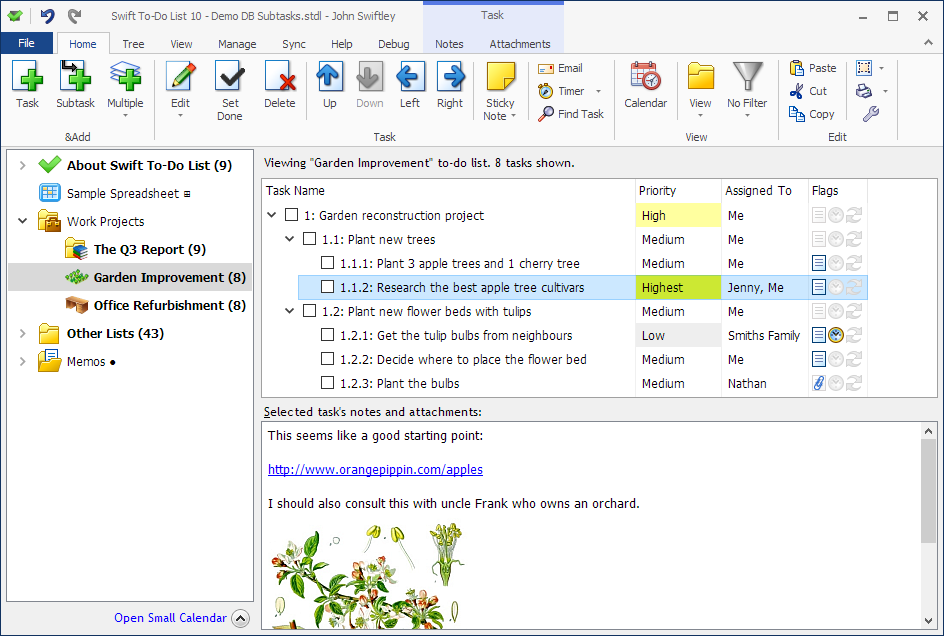
To-do list tree
- To-do list tree is used to organize all your to-do lists, lists and memos (notes).
- The tree panel is displayed at the left side of the main Swift To-Do List window.
- The Tree tab you to quickly add, edit, delete and move to-do lists (up, down, left, right).
- New tasks are always added to the currently selected to-do list.
- Tree has smart numbering that shows you how much tasks are in each of your to-do list (configurable in Options).
- To-do lists with undone tasks are shown bold in the tree.
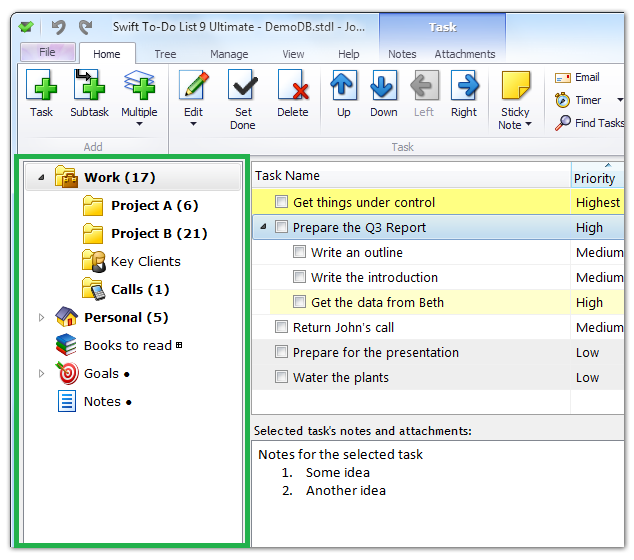
What can you do with the to-do list tree?
- To display a to-do list, simply select it in the tree.
- You can easily cut, copy and paste to-do lists or whole tree branches. This allows you use to-do list templates that you can create for yourself.
- You can just Drag and Drop to-do lists and memos around using your mouse to reorder them as needed. This is super-intuitive.
- Swift To-Do List has inbuilt library of 244 colorful icons in 4 sizes that you can choose from for your lists and memos. This makes organizing fun!
- To move tasks to a different to-do list, simply Drag and Drop the tasks to the desired to-do list using your mouse. Hold the Control key during the operation to copy the tasks instead of moving them.
- You can choose custom colors, font, and icon size. You can even hide the tree.
- The tree can automatically alphabetically sort your lists and memos.
One of the innovations in Swift To-Do List is that the to-do list tree be used to organize 3 different kinds of objects:
- To-do lists, which contain tasks (actionable items)
- Lists, which contain non-tasks (non-actionable items, such as ideas, inventories, etc)
- Memos, which contain rich notes, that are task-independent
- Spreadsheets, with full-featured formatting, formulas and more
Download Swift To-Do List now
Getting organized has never been easier. Download fully functional 30-day trial of Swift To-Do List now - you can be up and running in literally 3-5 minutes!
I was looking for a tool to get rid of my paper notes and to be able to prioritize all my small tasks and make sure that nothing was missed on a specific date. I did find a couple of different packages but all of them were either too complex to start using or too comprehensive and inflexible for my purpose.
I downloaded Swift To-Do List and started using it right away. It was soon obvious that it did the job quite well. Now I use the Professional version and I am still very focused on keeping it all simple and avoid 'non-sense' information. It has the features I need and it is very easy to use.
Thanks!
Rene Lynge, Managing Director, Concens A/S, Denmark
 Tree Notes
 FastPaste
 Mind Collected


 Swift To-Do List 11
 Swift Mind Freedom
 Meta Productivity
 Daily To-Do List