|
- Secure Sync. You can use Swift To-Do List on unlimited number of computers and keep them all synchronized.
- This feature and all related features are optional. Swift To-Do List can work offline.
|
 |
- Share and collaborate. You can easily share your tasks and notes with others. Just click the Add User button in the Sync tab.
|
 |
- Mobile apps for iOS and Android. View and edit your synced tasks and notes using the companion mobile apps. Available from Apple App Store and Google Play.
|
 |
- Companion web app. You can use the web to view and edit your tasks and notes, even on computers where Swift To-Do List is not installed, including Mac and Linux computers.
|
 |
- Secure Cloud backup. Even if your computer crashes or is stolen, you will never lose your data! All you have to do is to enable the Secure Sync feature.
|
 |
- Manage both tasks and notes. Each task has its own notes, and you can also create task-independent notes ("memos") in the to-do list tree.
- You can also manage lists of non-actionable items, such as inventories and ideas.
- You can have the items in your lists automatically numbered.
|
 |
- Scheduling calendar with day, week, month and time-line views.
- Be the master of your time with the fully featured scheduler!
|
 |
- Universal import (CSV/TSV/TXT). Import tasks from Outlook, Lotus Notes, Excel, Task Coach, Task Merlin, VIP Organizer, and many other programs. You can also import tasks from all web-apps that support CSV export, such as Toodledo.
|
 |
- To-Do List Tree with icons to organize your to-do lists and notes (memos).
- Choose from more than 240 colorful icons in 4 sizes for your lists and memos.
- Easily reorder to-do lists using mouse (Drag and Drop)
- Easily move or copy tasks between to-do lists using mouse
- Cut, copy and paste to-do lists and memos (this allows you to create your own templates)
- The to-do list tree can be automatically alphabetically sorted
|
 |
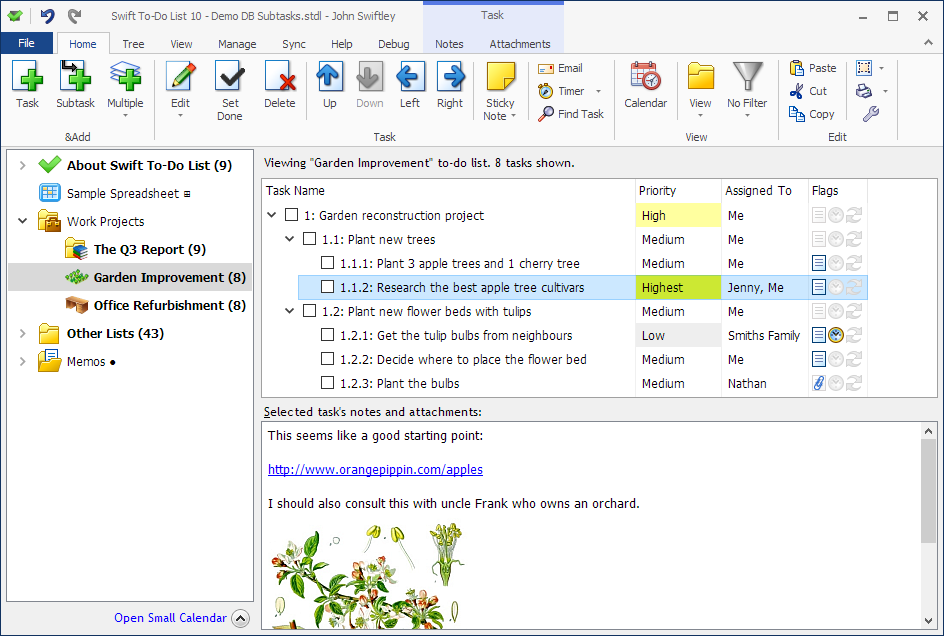
- Subtasks allow you to break down complex tasks into easily manageable chunks.
- Reduce procrastination and make your work more enjoyable by breaking tasks down into small action steps.
- Enjoy your work more be seeing the progress you are making.
- If you lay out all the small steps in front of you with subtasks, following them will be easy!
|
 |
- All the task fields (columns) you might ever need!
- All fields are optional, and can be even completely hidden - total customization!
- Supported fields include Task Name, Priority, Type, Due Date, Days Left, Start Date, Completion Date, Context, Assigned To, Time Estimate, Time Spent, Percent Done, Status, Hide Until Date. Creation Date and Last Changed Date are also automatically recorded for each of your tasks. There are 24 different columns in total to choose from.
- You can even rename any of the fields!
|
 |
- Reminders can be easily set for any of your tasks with just a few clicks. Swift To-Do List has great reminder support. The snoozing of reminders is really easy and flexible. You can even receive email reminders and task recurrence notifications sent to you directly from the program.
|
 |
- Recurring tasks support. Very flexible setup, many patterns to choose from:
Hourly, daily, weekly, monthly, monthly on day of week, yearly, yearly on day of week, X days after completion. It is possible to setup recurrences like: The last Friday of every month,
or the first Monday in January, or every Tuesday and Thursday, or 5 days after the task is completed or any other pattern. Unique feature: You can even preview the next 10 times the task is going to recur.
|
 |
- Rich notes formatting and editing, including styles (bold, italic, underline, strike through), paragraphs, colors, bullets, numbered lists, multi-level lists, fonts and images.
- Insert date/time or separators with keyboard shortcuts.
- Create hyperlinks to websites, local files, or even to-do lists or memos in the to-do list tree.
- Create and edit tables
- Inbuilt spellchecker. And much more.
|
 |
- Import/export notes and memos from many formats, including MS Word DOC and DOCX files, HTML files, web-archive MHT files, OpenOffice ODT files, plain text TXT files, rich text RTF files, and e-book ePUB files.
- Export notes and memos to PDF files
|
 |
- Spreadsheets support. Swift To-Do List allows you to easily manage multiple spreadsheets organized in a hierarchical tree with icons, together with your other to-do lists and memos.
- Rich editing, much like in MS Excel, including AutoSum, formulas, formatting options, and more.
- Spreadsheets are great for organizing various non-task information, such as budgets, financial calculations, inventory management, habit management, various logs and schedules, invoices, and more.
|
 |
- Reorder your tasks using mouse (Drag and Drop). You can either sort your task lists by any column (or multiple columns), or you can easily
create your own custom order of tasks with mouse.
|
 |
- Attachments: Attach files, folders, email addresses and web links to your tasks. You can simply Drag and Drop files in and out of Swift To-Do List!
- Create embedded file attachments and store the files directly in the Swift To-Do List database.
|
 |
- Attach emails to tasks: You can Drag and Drop emails and calendar items from Outlook into Swift To-Do List to attach them to your tasks. Many of your tasks come through email, and the convenience of being able to attach emails to your tasks is invaluable. Other email clients like Mozilla Thunderbird or The Bat! are supported as well.
|
 |
- Create tasks from emails: You can just Drag and Drop emails into the task-view to add them as tasks. See a short video demo.
- All email clients which support external Drag and Drop are supported, including Outlook, Windows Live Mail, Mozilla Thunderbird, Lotus Notes, The Bat! and others. You can also Drag and Drop .eml and .msg files.
- Optionally use an Outlook Add-In, which makes it even faster: Create tasks from emails with just 1 click!
|
 |
- Sticky notes for your desktop. Create a sticky note from any task with a single click. Customize colors, transparency, and more.
|
 |
- Printing and exporting is powerful, yet very simple to use. The output can be filtered,
grouped by any column, and it can include only the tasks, to-do lists, and columns that you want. The export supports task notes, colors, check boxes.
Choose the text size. Export to HTML or MS Excel (comma delimited). And much more.
|
 |
- View modes and filters that allow you to see only the tasks you need at the moment. Create your own filter presets and quickly switch
between them using toolbar button or automatically assigned keyboard shortcuts (Ctrl + 1, Ctrl + 2, ...).
|
 |
- Hide Until field for your tasks is an extremely useful innovative feature. Think of it as a "mega-snooze" for your tasks: It allows you to hide tasks until a later date.
- Is your list too full and cluttered? Well, hide the stuff you don't have to worry about for now until later! When the specified date comes, it will re-appear on your to-do list. You can hide things until tomorrow, for a week, for a month, for a year - or until any date you want!
- With Hide Until field, your to-do list will be sustainable and useful. You won't abandon it, as it will never become too cluttered. It will remain short and sweet.
|
 |
- Sort your task lists by multiple columns at once. Want to sort them by Due Date first, then by Priority? No problem. Or, want to sort them by Priority first, then by Due Date? No problem! Any other combination, even with 3 or 5 columns? No problem. You can sort by any number of columns. To add or remove a column from the sort, simply hold the Control key while clicking the column.
|
 |
|
 |
- Info panel below the to-do list tree which shows you: How many tasks are due today, due tomorrow, to do total, and done total.
- With just 1 click, you can see any of these tasks. For example, if you click the "Tasks to do today" label, you will immediately see all the tasks due today.
|
 |
- Collapsible Calendar Panel below the to-do list tree allows you to view tasks due on a specific date or multiple dates - with just one click! This gives you instant overview.
- The calendar can be linked to Due Date, Start Date, Completion Date, Change Date, Creation Date or Hide Until Date of your tasks. This gives you a lot of options how to efficiently use the calendar panel in your situation.
|
 |
- Undo/redo any operation. Know your data is safe thanks to undo. Deleted something by accident? No worries, you can easily undo it.
|
 |
- Cut, copy & paste tasks, to-do lists, notes and attachments. Fully integrated clipboard support. This allows you to create templates and checklists.
|
 |
- Task Archive stores your deleted tasks, you can recover them if needed. Never lose your tasks!
- The Task Archive also records the deletion date, so you can use it as a history tool.
- Use automatic archiving of done tasks to keep your lists clean and up-to-date. Done tasks can get archived immediately or after a specified amount of days.
|
 |
- Custom task coloring. Automatically color tasks by priority, type, status, assigned to or context. Highlight overdue tasks. Highlight tasks due today. Choose your own custom colors.
|
 |
- Email tasks. Assign and email tasks with just 2 clicks. Right click any task, select Email Task, click Send and you are done! You can edit the email message and send it directly from Swift To-Do List via SMTP. You can fully customize the email template to include any task properties, its notes and any other text. You can even send hidden BCC copy to yourself.
|
 |
|
 |
- Time Tracking. Automatically track the time spent on your tasks. Just right-click any task, and select "Start Time Tracking", and a small floating window counting and displaying the time spent will be shown.
|
 |
- Portable. Runs from USB drive. Swift To-Do List can be deployed to your USB thumb drive and you can then run it on any computer from there.
|
 |
- Enable or disable fields as needed. This is a unique feature. Swift To-Do List automatically changes depending on what columns you use. For example, if you disable the Context field, you won't even know that Swift To-Do List supports it. But if you discover that you need it one day, you can easily enable it.
- Swift To-Do List is extremely flexible and customizable.
|
 |
- Protect your database with strong encryption. The encryption is virtually impossible to bypass if you use a strong password.
|
 |
- Mouse or keyboard can be used to accomplish any operation.
Swift To-Do List supports many hotkeys and shortcuts. If you are an advanced user, you can control it entirely using keyboard and shortcuts
to save time. Swift To-Do List also has global hotkey to activate or hide it and global hotkey to add a new task.
|
 |
- Clean and simple design.
- Intuitive and very easy to use, yet powerful and efficient.
- No learning needed. Start using Swift To-Do List immediately.
|
 |
- Easy fast installation that doesn't require admin privileges.
You can install Swift To-Do List even if your Windows user account doesn't have administrator privileges. This makes it perfect for installing it at your day job - you don't need to ask anyone for a permission. Just install it under your user account even without the admin rights.
|
 |
|

 Tree Notes
 FastPaste
 Mind Collected


 Swift To-Do List 11
 Swift Mind Freedom
 Meta Productivity
 Daily To-Do List