Notes management software
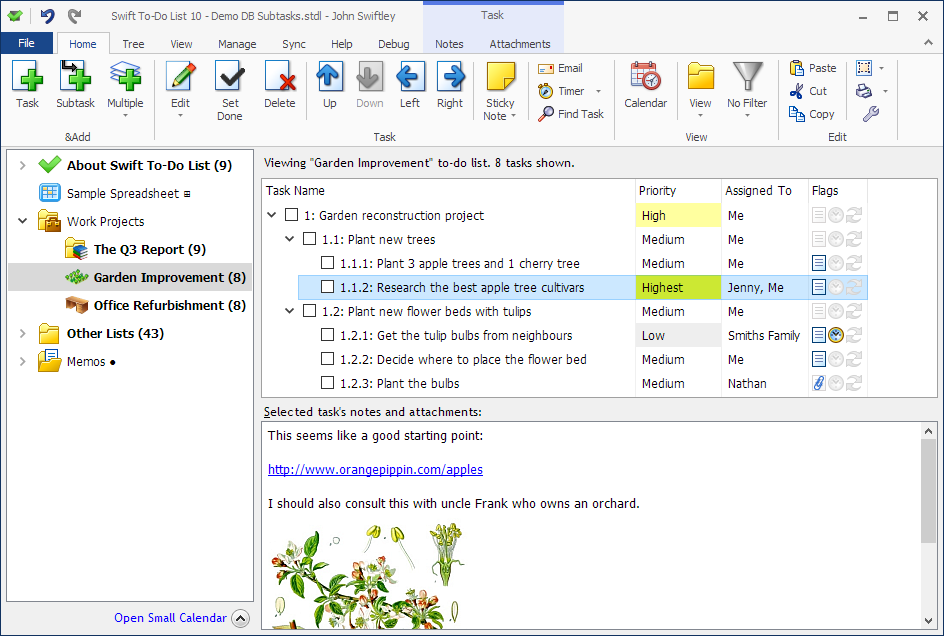
Every task in Swift To-Do List has its own notes. You can edit them either using the Edit Task window or in the notes panel (highlighted below).
You can also create task-independent notes in the tree, called memos.
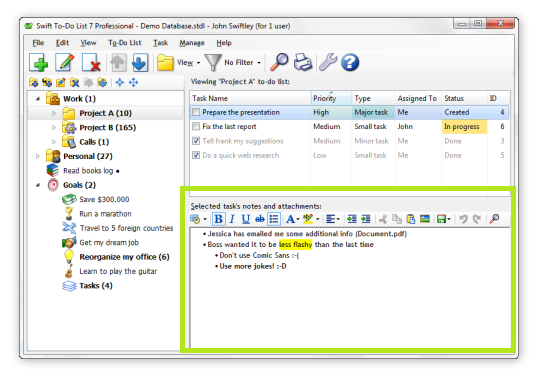
Notes panel
The notes panel is located at the bottom of the main Swift To-Do List window.
Notes panel displays the notes of the currently selected task.
There are many keyboard shortcuts for notes editing, like formatting, inserting date/time stamps, etc.
You can also Drag and Drop files into the notes panel to add them as attachments. When you add an attachment, the notes panel will be split in two parts, and the smaller part with attachments will allow you to manage the attachments.
If you wish, you can hide the notes panel using the View menu.
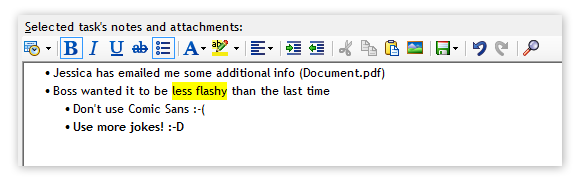
Supported notes editing operations include all the standard operations you would expect, plus many extra. Here is a list of the supported notes editing/formatting actions:
- Bold
- Italic
- Underline
- Strike through
- Bulleted lists
- Numbered lists
- Multi-Level Numbered lists
- Font and font size changing
- Text color changing
- Text background color changing
- Highlighting
- Align left, center, right
- Indent, outdent
- Cut, copy, paste, paste as plain-text
- Insert image
- Undo/redo
- Insert date, time, date & time, separators, etc
- Import txt and rtf files (append or replace)
- Export to txt, rtf or HTML
- Printing
- Find, replace
- Remove formatting from selection or all text (useful after importing or pasting formatted text)
- Clear notes
- Customization of background color
- Customization of the default font
- Spellchecker
- Create hyperlinks - to URLs (websites), files, or to to-do lists and memos in the to-do list tree
Insert date and time stamps
One of the popular features is the ability to quickly insert time/date stamps into the notes. This allows you to manage simple logs or journals, track your progress, etc.
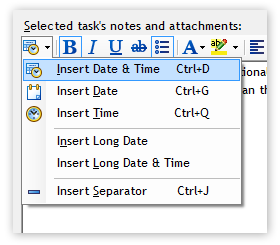
You can also use hotkeys for inserting time/date. These hotkeys work everywhere in Swift To-Do List, not just in the notes panel. For example, when you are creating a new task, you can quickly insert time and date into the task name by pressing Control + D.
Notes import and export
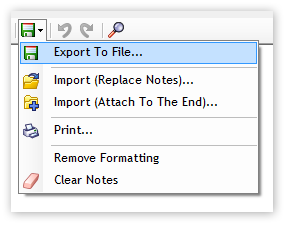
You can import notes and memos from many formats, including:
- MS Word DOC and DOCX files
- HTML files and web-archive MHT files
- Plain text TXT files
- Rich text RTF files
- OpenOffice ODT files
- E-book ePUB files
You can export your notes and memos to PDF(!), and all the formats listed above as well.
You can also, of course, print your notes.
To import, export or print your notes, use this icon in the notes toolbar:
Download Swift To-Do List
Experience Swift To-Do List for yourself. The 30-day trial is fully functional, and you can be up and running in literally 3 minutes.
Just wanted to let you and your team know that after years of entanglement with un-professional task management software solutions I have found SWIFT TO-DO LIST 7!
Guess these were the best Euros spent recently for a to do list soft.
Hope you are continuing to improve / enhance your product further.
Thanks for making my day...
Frank H, Germany
 Tree Notes
 FastPaste
 Mind Collected



 Swift To-Do List 11
 Swift Mind Freedom
 Meta Productivity
 Daily To-Do List