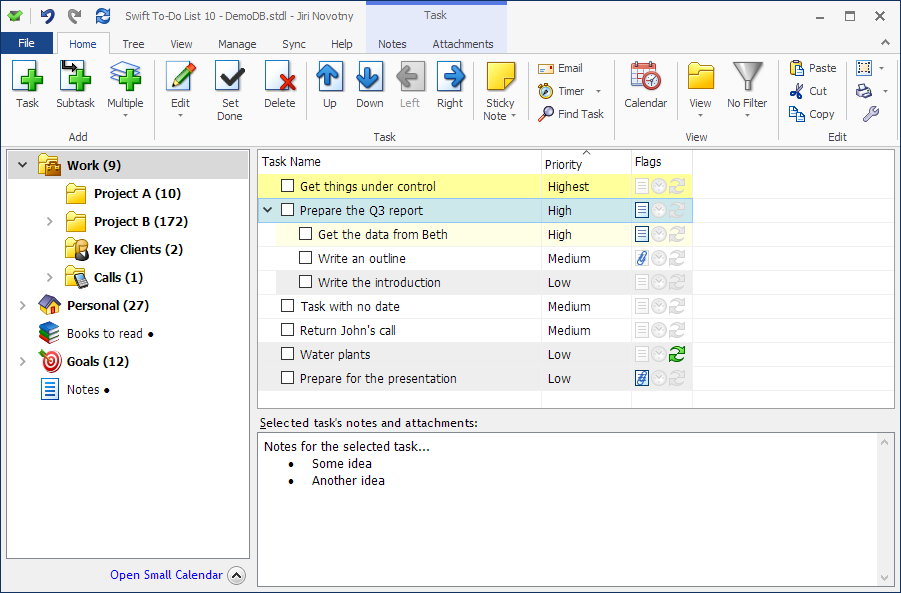
- The absolutely best way to get started is our "Get Organized Step-by-Step" email course ($100 value, free for you!) To get the course, download Swift To-Do List and enter your first name and email address on the download page.
- You can get started literally in 5 minutes. Swift To-Do List is super easy to install, understand and use. Everything is intuitive.
- Quick Start Guide wizard will be shown on the first start. It will guide you through the program basics. You can also display it later using Help - Quick Start Guide.
- You can also read the Help file available from Help menu.
- If you have any problem or question, you are more than welcome to contact us.
- Yes. Swift To-Do List fully supports Windows 11, Windows 10, Windows 8, Windows 7, Windows Vista, Windows XP, both 32-bit and 64-bit.
- Yes, iPhone and Android mobile apps are available from app stores. You can get the Swift To-Do List mobile app in the Apple App Store and on Google Play.
- Yes, this is possible with our new Secure Cloud Sync feature..
- Use Sync button in the Sync menu in Swift To-Do List for Windows to get started.
- Install Swift To-Do List on the new computer (you can Download it from our website)
- Then copy over the database file (it has .stdl extension) with your tasks to the new computer.
- Tip: You can use File - Copy (Backup) Database to get the actual copy of your database.
- Open the database on the new computer. You will be asked if you want to make it the default database - select Yes.
- After that, simply uninstall Swift To-Do List from your old computer, and unlock Swift To-Do List on your new computer with your
license code. If you have lost it, we can resend it to you - contact us.
- Alternatively, if you use the Sync feature, then instead of copying the database file manually, you can create a new empty local database file in Swift To-Do List on the new computer, and simply sync it with your cloud database.
- No. Swift To-Do List can be installed and used without admin privileges.
Updating your Swift To-Do List couldn't be simpler!
There is only one single installer of Swift To-Do List - it is for trial, full version, and updates - all in one exe setup file. You can also use Help - Check for Updates directly in Swift To-Do List. If a newer version is available, click the Download button, which will take you to the download page on our website.
- Each database file can contain up to 4 GB of data. That's a lot, and it allows you to store tens of thousands of tasks and notes and attachments.
- Number of tasks, memos and to-do lists is unlimited, provided the 4 GB limit for the database is not exceeded. As far as we know, no of our customers has ever hit the limit.
- But, if you ever hit the limit, you can simply create another database file. You can create unlimited number of databases. Although it's an unofficial feature, it is also possible to run multiple instances of Swift To-Do List at the same time, so you can have multiple databases opened at once. More on that can be found in the Help file, chapter "Multiple Instances".
- It is also good to know that if you are going to have 1000s of tasks in a single to-do list, or 10.000s of tasks in a single database, the software might become slower. It is a good practice to archive old completed tasks, and to divide your tasks into multiple to-do lists to keep the program "swift". Hiding unnecessary columns also helps.

 Tree Notes
 FastPaste
 Mind Collected


 Swift To-Do List 11
 Swift Mind Freedom
 Meta Productivity
 Daily To-Do List