




 Swift To-Do List 11
 Swift Mind Freedom
 Meta Productivity
 Daily To-Do List
Swift To-Do List has excellent support for recurring (repeating) tasks. This post will tell you about all the different possibilities of recurring tasks.
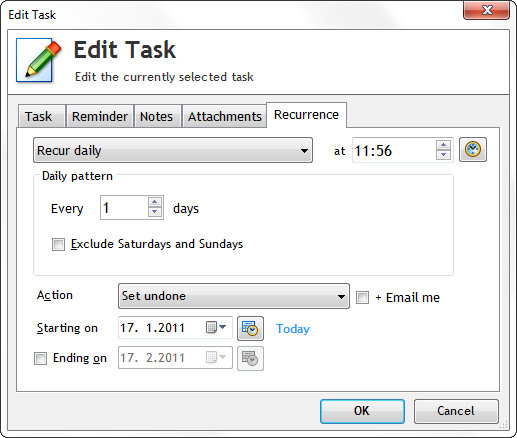
You can easily turn any task into a recurring task. All you have to do is to Edit the task, go to the Recurrence tab, and set up the recurrence pattern.
What is a recurring task?
A recurring task is repeating task. It is a task that needs to be done more than once, and it needs to be done periodically. It can have an ending date specified (check Ending on to set the date).
What happens when the task recurs?
Multiple things happen -
First, the recurrence Action for that particular task is executed. These actions are task-specific. You can select from these different actions for each of your recurring tasks:
- Set undone – When the task recurs, it will by simply unchecked (set as undone)
- Set undone and remind me – Same as the previous action, but a reminder window informing you about the fact that the task has just recurred will also be shown
- Duplicate – A new identical copy of the task will be created. The copy will be unchecked (set as undone). The original task will be left untouched, only the recurrence settings will be carried over to the new task and removed from the original task.
- Duplicate and remind me – Same as the previous action, but a reminder window informing you about the fact that the task has just recurred will be also shown
- Just remind me – When the task recurs, a reminder window will be shown.
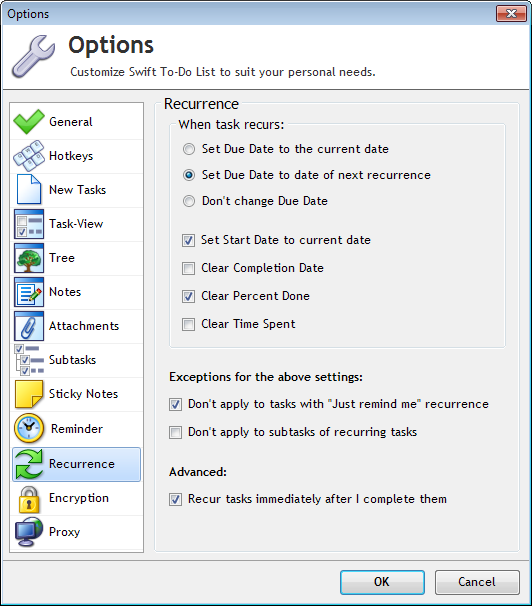
Second thing that happens are actions based on recurrence settings that you can configure in the Options window. These actions are not task specific. These options apply to all recurring tasks.
Use File – Options, then go to the Recurrence tab. Here, you can configure what happens when a task recurs. For example, the Due Date of a task can be automatically set to the date of its next recurrence.
And finally, third thing that happens is that you can receive an email notification (in Professional edition only) that the task has just recurred. This is purely optional – if you want the email notification, check “ + Email me” in the Recurrence tab of the Add/Edit Task window.
What’s “Immediate” recurrence? (NEW SEPTEMBER 2014)
In version 9.10, the following option was added into the Options window, Recurrence tab (you can open the Options window using menu File – Options):
“Recur tasks immediately after I complete them”
This option is enabled by default for new users of Swift To-Do List. Existing users have it disabled by default.
With this option enabled, tasks will recur immediately when you complete them. This allows you to work with the next instance of the task immediately and gives you move overall flexibility.
Even with this option enabled, you will still receive recurrence reminders based on the original schedule at the appropriate time. Recurrence reminders are generated when you use recurrence action “Set task undone and remind me”, “Duplicate and remind me” or “Just remind me”.
With the immediate recurrence enabled, if you use the recurrence action “Duplicate” for any of your recurring tasks, the task will also recur based on the original schedule even if you won’t complete them in time. If you don’t want the task to recur unless you specifically complete it, then use the recurrence action “Set undone” instead.
How can I tell when a task is going to recur next?
Since version 7.33, you can use the recurrence Preview feature. In the Add Task or Edit Task window, go to the Recurrence tab, and click Preview. This will show you the next ten times and dates when the task is going to recur.
Another way is to use the Recurrence column. To display it, use the menu: Go to Manage – Columns, and in the Manage Columns window, check “Recurrence” to display the Recurrence column. The recurrence column displays the day when the task is going to recur next, and also the recurrence pattern for that particular task (None, daily, weekly, monthly, yearly, hourly, etc).
How can I tell if a task is recurring?
You can either use the above mentioned recurrence column, or, you can also use the Flags column. The icon with green circular arrows symbolizes recurrence.
Can I disable recurrence for multiple tasks?
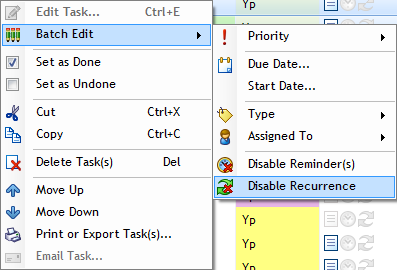
Yes. Select the tasks, then right-click them, and use Batch Edit – Disable Recurrence, as shown below:
Need repeating reminder? Use task recurrence!
One of the actions that you can choose from is “Just remind me“. This is perfect for repeating reminders. For example, you can create a task with hourly recurrence that will remind you every 1.5 hours to stretch, drink some water, etc.
What happens when I archive/delete recurring task?
When you delete (archive) a task, the task won’t recur anymore. If you restore it, it will start to recur again from the next closest recurrence date. (All recurrences that should have happened when it was archived will be skipped).
Any other questions? Post them in comments
Please post any other questions in comments, and I will expand this post promptly based on your input.
If you have moved all done tasks to the archive, do you have to recreate any of those tasks that were set to recur (or at least recover them from the archive)?
JD: When archived, tasks do not recur anymore. I will update the post, thanks.
You should either NOT move recurring tasks in the archive, OR, restore the recurring tasks from the archive if you want them to keep recurring.
Why not create a filter to exclude recurring tasks from archiving.
Great idea, Jerry!
Could somebody please explain to me how I could create a filter to exclude recurring tasks from archiving? The “clean tasks” window only shows the options of archiving a task that was created or done X number of days ago, and I don’t see how to connect filters to archiving. I must be missing something here…
JD: You are right, that is not possible.
However, you can create the filter, and use it combined with View All To-Do Lists view mode, then simply select all tasks and hit delete.
Deleting a task brings it into Archive by default. If you use Shift + Delete though, it will be deleted permanently.
Ah! I hadn’t thought to archive tasks by simply deleting them. I was making things more complicated than necessary (as usual). Thanks for your help!
Couple Issues/Questions:
I’ve set a task on 1/15/2011 to recur every three months on the 15th. But, in the recurrence column, it shows a monthly recurrence on 2/15/2010 instead of 4/15/2011. Why is this?
If I set a task to recur (daily, weekly) and mark it as done, will it still recur, or does marking it done remove the task?
What is the best way to create a recurring task that I can mark as done, but still continue to recur on schedule?
Jerry:
Please pay attention to the the “Starting On” date.
Task will recur regardless whether it is done or not.
Hi Jiri. Yes, that worked, but I still need help with daily recurrences. On 1/31/2011 I set up a task. It was due on 1/31/2011, set to duplicate every day starting on 2/1/2011 at 12:00am (midnight). Under options, I have checked “set due date to date of next occurrence.” My expectation was that on 2/1/2011 I would see the duplicated task with a due date of 2/1/2011 and the next recurrence date would be 2/2/2011. Instead, the duplicate shows a due date of 1/31/2011 (instead of 2/1/2011), and the original task shows a due date of 2/2/2011 with a next recurrence date of 2/2/2011. What should I have done to get the duplicate to have been dated on 2/1/2011, with further duplicates being due every day.
Hi Jerry, thanks for your questions.
It works like this:
With the option “Set due date to date of next recurrence”: When the task recurs, its due date is set to the date of its next recurrence – so the Recurrence and Due Date columns show the same value – that’s by design.
If you use the “Duplicate” recurrence, all changes are applied to the copy of the task, not the original task.
I’ve just tested it and it works as designed. Are you really sure the changes got made to the original task, and not the copy? I’m unable to reproduce the issue.
Hi Jiri,
I deleted the task and recreated it. Now it works. I must have done something wrong with the first task, but I have no clue as to what it was.
Thank you for an excellent product and wonderful support.
Glad to hear that, Jerry! Have a wonderful day.
Ahhh…..I also was archiving recurring tasks and then………wondering why I wasn’t getting anymore reminders. This explains it. Hopefully this can be improved in future editions. I was using the “clean tasks” option to archive old tasks and losing all my recurring tasks. From now on, I will use the delete button.
Is there a place where one can recover or view archived tasks?
Deleted tasks will never recur, that won’t be changed in the future. But, we will improve the Clean Tasks dialog with option to exclude recurring tasks.
Yes, you can recover the deleted tasks. To “undelete” your recurring tasks, use Manage – Archive.
If I want a task to recur every year on May 15th and to be reminded 15 days prior to the due date (which is also 5/15), I will get reminders starting on 4/30 but the task won’t actually be created in the to-do list until 5/15?
If this is the case, is there a way to have the task created at the first reminder (in this case 4/30) but also automatically advance the due date to show 5/15 each year?
I considered changing the recurrence to 4/30 instead of 5/15, but I would then always have to manually adjust the due date each time the task recurs. I can do this but would like to know if I’m doing something wrong first.
Thanks!
Hi George,
Thanks for your question.
The task will recur on 5/15, as specified in recurrence.
The reminder will still happen. The task will be there, it will just be marked as done.
Unfortunately, doing what you describe is currently not possible.
Have a great day, George!
I created a recurring monthly task for the 20th of each month. I set the action as Duplicate. When I checked off the task as completed, a new task for next month was not created. The Recurrence column for the completed task shows next month’s date.
How does the new task appear?
The task will recur and appear on 20th. The state of its completion won’t affect the recurrence at all.
[...] You can find more info about recurrence (in general) in our Task Recurrence Guide. [...]
I’m just getting into using the ToDo list, and am relying on it more and more.
The “Preview” option in recurrence is helpful; it helps me to make sure the recur works properly.
However, my normal mode of working with recurrence is to fill out the main page (including the first Due Date), and the go to Recurrence tab — but it seems that the Due Date has no meaning for Recurring items?
I’m not sure of the options to use if I want to have a task due on the 15th of every month; when I finish this month’s task (check the “done” box, I’d like another entry to appear with a due date of the 15th of next month). From reading the above, I’m not sure that is possible.
Anyway, thanks!
Hi Richard,
Each task has all settings related to the recurrence located right in the Recurrence tab. The recurrence is not affected by the Due Date (just the other way around).
You are right: The tasks recur on the 15th, not immediately after you complete them.
I currently use Outlook tasks but am looking into changing our company to To-Do list. Am I correct in saying that recurring tasks only appear on the list on their due date? (when I complete a task the old due date still shows instead of the date of next recurrance). I need a list organised by next due date so that we can work through tasks (which can take a few days to complete) by due date – but hopefully completing them all a few days before they are actually due. On Outlook when I tick a recurring task as completed the completed task goes to the bottom with a strike through and a new task is created. Is this possible?
Thanks
Hi Tom,
In Swift To-Do List, the task always recur based on the original schedule, not immediately after you complete them. You can preview the task recurrence by clicking the “Preview” label in the Recurrence tab. When a task recurs, it’s Due Date can be automatically set to the date of the next recurrence, and the Start Date to current date. This can be configured in Options – Recurrence.
Also, newly created recurring tasks can automatically get Due Date assigned to the date of the next recurrence.
Appreciate the reply Jim. I understand how tasks recur but my problem is that I can’t see my to-do list in a format that shows me these tasks listed by next due-date. Once I’ve completed a task I want to click it to say it’s completed and that occurance to disappear and the next occurance to appear on the to do list. I could be doing something silly which is preventing me getting this view.
Regards
Hi Tom,
When a task is supposed to recur on some date, that date is set as the due date. If you complete the task it won’t affect the due date. But once the task recurs again, the due date will be set to the date of the next recurrence. So what you require is probably not possible the exact way you want.
Attachments are lost when using duplicate actions. Is this intentional?
Hi Mike,
This was a bug. We’ve just fixed it and released version 7.614 with the fix. Thank you very much for bringing this to my attention! Download the latest Swift To-Do List here.
Have a wonderful day. Cheers!
Hi, I am very confused on recurring tasks. I am working on a schedule for our company and I have been very overwhelmed by this. Instead of stating all of my questions, I’m just going to lay out a simple task to enter, I want to know if it’s possible for me to get it the way I want.
I want to set up a task due on 11/1/12. I have to do this task yearly, so I want it to recur. I want the task to always be due on 11/1. I want the 11/1/13 task to be visible as soon as the 11/1/12 task is done, or on 11/2/12 would be fine as well.
What settings do I use to make this possible? From what I’m gathering, it seems like the recurrence date you set changes the due date. It also seems the task isn’t available until the date is due. I’m reasonably certain I am looking at this wrong, because I don’t see the value in a task popping up the day it is due. Please help me!
Hi Brian,
This is no problem: “I want to set up a task due on 11/1/12. I have to do this task yearly, so I want it to recur. I want the task to always be due on 11/1.”
This is unfortunately not possible: ” I want the 11/1/13 task to be visible as soon as the 11/1/12 task is done”. — The recurrence always happens based on the original schedule, regardless when you complete the task. The task can’t be automatically due before it actually recurs.
Soon coming version 8 will include a “Hide Until” field, which will allow you make a task which will start appearing after a certain date, e.g. before its due. It requires some manual work (to set the field), but I think that for tasks that need to be done yearly, it is acceptable.
Also, in the a bit more distant future, we plan to improve/change the recurrence, so it behaves like you expect (which is basically the Outlook recurrence behavior).
Jiri…. thanks for all your help recently. Will “reminders xx days before due date” ever carry over after task recurs in a newer version possibly? Reminders before task is due are very important to me, and I’m just trying to get away from having to reset them every time a task recurs, or create a second recurring task set up as the reminder.
Hi Gary,
Reminders before due date can’t be really carried over, because when a reminder is shown, it gets deleted.
Jiri…. site for me an example of why I might want to duplicate a task. I’m having difficulty understanding the “duplicate” feature.
Hi Gary,
This depends entirely on what kind of tasks you have.
Duplicating a task makes sense if you want to keep a “history” of the completed tasks.
It also makes sense when you can’t afford to miss any of the recurred instances of the task. Say, for example, that you want to save $100 per month to meet your yearly savings goal, but you don’t complete the tasks for 3 months, and therefore, 3 such tasks pile up. Then you get some extra money, and decide to “catch up” and mark the 3 old recurred tasks as done and put $300 into your savings account.
On the other hand, if you have something like a weekly task which is “water plant”,s you won’t suddenly decide to water the plant 3x times as much, just because you missed watering it for 3 weeks. In this case, the only information you need is when you watered it last.
Hope this helps.
Hi Gary,
I use the duplicate feature for tracking the month-end close procedure at my company. I have our month-end close checklist set up in STD with recurrence set and the actions set to “Duplicate and remind”. When my staff complete one of the tasks I mark it as done which captures the current months task completion details and then generates a new task for the following month. Over time I have a history of what was done, when and by whom and can add notes to a specific months tasks. This is great for KPI analysis and for briefing our auditors at the end of the year about the process for each month end. Hope that gives you another example of ways to use the duplicate action.
Jiri – I have practically run my business for 10 plus years on a simple, intuitive program named OnTime, limping it through Windows updates. It won’t run on Win7. I need to purchase new software. The functionality of STD is similar except for this important function. I have a task set to reoccur weekly. I did it today. I want to remove it from today’s list, without deleting it for the future. Is this possible?
Hi Ron,
Yes, it’s possible. The easiest solution would be to mark the task as done, and then use Filter to hide all done tasks. Once it recurs, it will be set as undone again.
Hi Jiri – Is it possible to have the filters Due Today and Undone Only both running at the same time?
Absolutely, you can set both criteria on a single filter. Use menu Manage – Filters, then either Edit a filter or Add a new filter. Check Due Date, set it to Today, and also check Done, set it to Undone Only.
i have a recurring task, setup to duplicate, when i check mark the box setting it as a done task, the task goes all the way to the bottom of the list, but i dont see the duplicated taks
Hi Andre,
The task duplicates based on the original schedule, regardless of when (or if) you complete it. If you click the Preview label in the Recurrence tab, you will see exactly when it will recur.
In the future, we might change how this works, so it recurs immediately after you complete it.
sorry but i still dont get it, if i have a task recurring every monday wednesday and friday, and on monday i checked it as marked, how am i gonna know on wednesday what i have to do?
On Wednesday, the task will automatically recur and un-check itself.
The feature update mentioned about a year ago (“in the a bit more distant future, we plan to improve/change the
recurrence, so it behaves like you expect (which is basically the
Outlook recurrence behavior) would also include then, the reminder prior to the event. Is that still on the drawing boards?
Bob,
Yes, recurrence revamp is still on our drawing boards. In fact, it’s pretty high on our priority list. It’s certainly coming!
What is the default time, or how does one set the time, for reminders such as:
Reminder on due date:
Reminder before due date:
Reminder on start date:
Reminder before start date:
Bob, the default time for all these reminders is set to 5:00 AM – so you get the reminder when you turn on your computer in the morning.
When you setup one of these reminders you can see the time (5:00 AM) in the Reminder column in the task-view area (if you have the column enabled).
Procedure/Process Task Recurring settings. I’ve tried almost every major to-do list and find them not sufficient for my needs. So far, this program looks like the best by far, but I’m trying to see if I can configure it, as follows in my dreams:
I’m a solo attorney with a paralegal. I do many collection cases, that are almost identical in the process of obtaining judgment and collecting. I’d like to set up a checklist template of all the steps, in-order, so that I can apply it to each new referral I receive. It seems like I can do this easy in your program by adding each new debtor as a to-do list. I’d like for when my paralegal completes a task, it reminds her of the next task and reminds her or me or both via email of what the next task is. In other words, when she or I complete a task, a reminder and/or recurrence of the next procedural task is triggered.
Is my dream settings possible??
Thanks,
Hi Caleb,
Yes, you can create a “checklist” in the to-do list tree, then copy it whenever you need it (Ctrl+C, Ctrl+V). Or, hold the Ctrl key and Drag and Drop it somewhere to put a copy there.
Having recurrence triggered based on completing another task is not possible. However, what I would suggest to you is to establish a workflow that you and your paralegal use. It can be very simple. For example:
1) In the morning, the paralegal looks into Swift To-Do List and prints tasks for today (he/she can just select some tasks, right-click them, and print them). In my experience, having the printed tasks on the desk really helps with getting things done.
2) Work on the tasks through the day (when something urgent comes up, add it on the printed list – and put everything else into Swift To-Do List)
3) When the paralegal is done for the day, he or she can email you a quick report listing the tasks done that day. Writing such a report shouldn’t take more than 5-10 minutes. He can even Ctrl+C and Ctrl+V the tasks from Swift To-Do List.
Similar workflows are very, very effective and used by many successful businesses. They also increase productivity and ensure steady progress..
We’ve released Swift To-Do List 9.100 which adds an “immediate” recurrence mode support. Tasks can now recur immediately when you complete them. You can enable this in Options – Recurrence tab, and learn more in the Help file, in the Recurrence chapter, or in the blog post above, in the section named “What’s immediate recurrence?”.
Maybe I am misunderstanding. I want my recurring task to be set to repeat at 2 days after completion. I set it to 2 days after completion, set undone, due date 9/30. I checked it complete today 9/30, but the recurrence created new task as 10/3. It should be 10/2. Is this a bug?
Hello, please download the latest version of Swift To-Do List. We’ve changed the recurrence behavior there, I believe it now works closer to what you would expect.
Is there a way to not have the time set for items that were created through Recurrence? I just want the date to be set and not the time, but it always seems to enable and set the time for these entries as well.