



 Swift To-Do List 11
 Swift Mind Freedom
 Meta Productivity
 Daily To-Do List
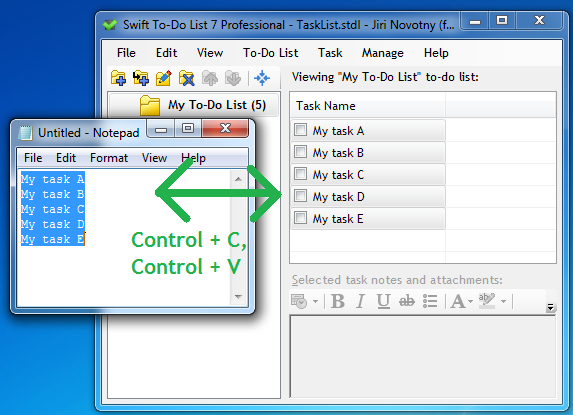
Did you know that you can use clipboard (Ctrl + C and Ctrl + V) to copy tasks in and out of Swift To-Do List? It couldn’t be simpler.
How to copy tasks out of Swift To-Do List
Simply select some task(s) in Swift To-Do List, press Ctrl + C (or use Edit – Copy), and they will be copied to clipboard. Now you can paste them anywhere.
If you paste them outside the task management software, they will be pasted as a list of task names, one per line.
If you paste them back in Swift To-Do List (eg. in a different to-do list, or even the same one), they will be pasted as exact copies, retaining all fields, notes, attachments, reminders, recurrence, etc. Just the Creation Date and Change Date will be set to current date.
How to paste tasks into Swift To-Do List
You can either paste a single line of text into our task organizer, or multiple lines.
When pasting a single line in the task-view, Add Task dialog will be opened with task name prefilled with the text in clipboard. This also gives you the chance to edit the task fields and enter additional details.
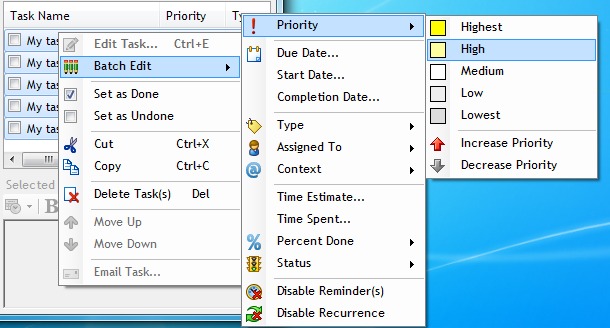
However, when pasting multiple lines from an external file like a crypto casino development roadmap or a basic meeting agenda, the Add Multiple Tasks dialog will open immediately. You can edit the individual lines to make sure that only tasks that you want will be added. When you finally press OK to confirm your current selection, you can immediately right click the freshly added tasks and utilize the Batch Edit feature to specify the exact deadlines, priorities, and other remaining details in one single operation.