


 Swift To-Do List 11
 Swift Mind Freedom
 Meta Productivity
 Daily To-Do List
Our task list management software can not only help you to manage all your tasks and reminders, but also all kinds of notes, including logs. Log a simple text list where each item can have a timestamp.
I personally use Swift To-Do List to organize not just all my tasks and to-do lists, but also:
- All my goals (for current month and year)
- Predictions for the next year (this can be quite fun!)
- Logs of books I’ve read
- Logs of shows I’ve seen
- List of interesting and inspiring quotes
- List of things I’ve borrowed and that I owe to someone
- List of things and activities I would like to try
- List of places I want to visit
- And most importantly, my thoughts (in a form of simple journal)
- (And lots of other things, but that’s a story for another time ;-))
Beyond my personal workflow, our community has shared incredibly diverse examples of how they utilize the memo feature. Customers frequently write in to describe the daily logs they maintain for their fitness routines. Others prefer to track their entertainment budgets across different digital subscriptions or gambling apps. We even have users who extensively document their ongoing milestones while studying complex subjects like a foreign language or programming. The absolute flexibility of a basic text field means you are never restricted by the rigid data structures or predefined templates that specialized habit-tracking tools often force upon their users.
How to create and manage a simple log?
It is quite simple. You can either create a dedicated memo for your log, or place it in notes of one of your tasks – for example, if you have a task “Read 10 books about marketing”, you could maintain the list of books you’ve already read in the task’s notes.
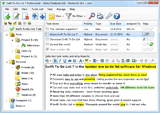
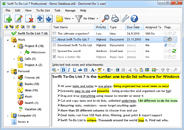
Having a stand-alone memo works best for most logs, though. This is a screenshot of simple book log managed in Swift To-Do List:
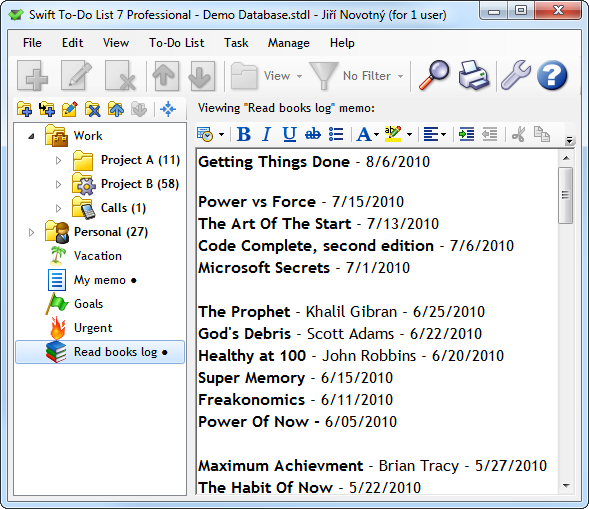
Creating log step by step
- Create a new memo in the to-do list tree (learn more about memos)
- Write a header for your new memo and increase its font size (optional)
- If you want the log to have multiple sections, make a few new lines, then insert a separator (Ctrl+J), write a header for that section, make a new line and insert another separator.
- Now you can start adding records!
- To create a record, simply make a new line, insert date stamp (eg. using Ctrl+D) and write the record (eg. the name of the book that you’ve just read).
Some useful notes hotkeys:
Ctrl+D – insert time and date, Ctrl+G – insert date only, Ctrl+Q – insert time only.
You could also use bulleted list that Swift To-Do List supports, but the bullets are not very useful in this case, as every line is a different record anyway.
Summary
As you can see, Swift To-Do List is very versatile, and can be used to manage list of various things, including logs (lists with timestamps). Similar approach could be used for simple journaling. I will write more about that in one of the future posts.
There are many kinds of lists – and logs are one of them. I hope that this post has inspired you to create more lists, because lists are great tool not just for living organized life, but also for retaining information and knowledge.