




 Swift To-Do List 11
 Swift Mind Freedom
 Meta Productivity
 Daily To-Do List
Pressed something you didn’t want to press? A big whoops? Did your cat walk over your keyboard? No worries!
Swift To-Do List has an awesome undo/redo feature that we are really proud of.
You can undo/redo nearly any action. The undo also has a deep history, so you can track-back quite a bit if necessary.
Some “soft” actions that do not modify the database (like viewing another to-do list) are intentionally not included in the Undo.
Deleted a to-do list by accident?
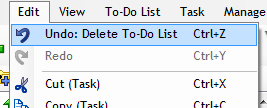
When you delete a to-do list by accident, you can simply undo it – it’s as simple as pressing Ctrl+Z or using Edit – Undo. Using Undo in Edit menu has a big advantage: you can see exactly what action will be undone.
This doesn’t apply just to to-do lists, but to anything – accidentally wiped out your notes? No problem.
Deleted a task by mistake? Easy fix.
Broken your precious list of task types / priorities? The cure couldn’t be simpler.
Task Archive
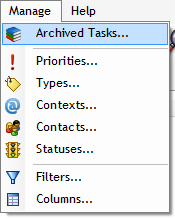
Please remember that although the undo history is cleared after Swift To-Do List exit, you can restore any deleted task using Task Archive available from Manage menu. Task archive has two purposes – it is a history of all the things you’ve accomplished in the past, and it also allows you to restore deleted tasks.
All deleted tasks are automatically moved in the Task Archive.
[...] Even though it is a permanent delete, you can undo this using the Undo feature. [...]